
Google Accessibility Newsletters
Stay up to date on the latest from Google Accessibility
Newsletters
Highlights
General updates
"What's new in Google accessibility" episode 12 is here!
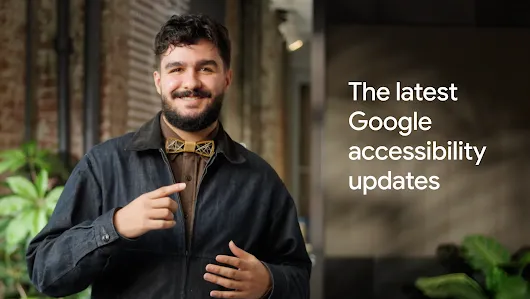
We also have an ASL version: “What’s New in Google Accessibility” | Episode 12 | American Sign Language
Gemini
-
We’ve been partnering with the neurodivergent community to learn how AI can serve as a meaningful daily ally. These two strategies help reduce cognitive load and boost focus for everyone:
You can set permanent preferences by adding custom instructions under Settings > Instructions for Gemini. For example, if you find dense text difficult to read, you can tell Gemini to always prioritize scannability with clear headings and breathing room.
You can also personalize your context by allowing Gemini to provide more relevant responses based on what it knows about you. By referencing past chats or connected Google apps, Gemini can offer tailored advice for anything from coaching you through a complex email to navigating workplace situations.
Android
- New TalkBack Keyboard Shortcut
- Android users who are blind or have low vision who use an external keyboard can now access the TalkBack screen reader via a useful shortcut that turns the feature on and off by pressing “Action + Alt + T.” Note that the Action key varies based on the keyboard: Windows keyboards use the “Windows” key for these actions, and Mac keyboards use the “Command” key.
- Customizable 3-Button Navigation
Those who find Android’s 3-button navigation mode easier to use than standard gesture navigation will be happy to know that the order of the “Back,” “Home,” and “Recents” buttons is now customizable. The “Back” and “Recents” buttons can be swapped between the left and right positions. This may be helpful for those who struggle with thumb strain, or for users switching from other phones who are used to a different button order. This setting preference will also carry over when you set up a new device. - Mouse Keys Acceleration
Users who rely on Android’s Mouse Keys feature, which lets you control your cursor with a physical keyboard rather than a mouse, can now experience custom cursor acceleration and speed for more control over how quickly the cursor moves from your key presses. -
Unified Voice Access Shortcut
Voice Access has introduced a unified Android Accessibility shortcut in Settings that controls listening mode, and the shortcut appears automatically. To turn listening on or off, simply tap the floating Voice Access shortcut. If you don’t like the default floating shortcut, you can customize your shortcut to turn listening on or off using the volume keys, accessibility gesture, or the navigation bar accessibility button instead.When you have multiple windows open on large-screen devices, Voice Access will now interact only with the topmost application window, preventing accidental interactions with hidden content, and reducing the number of visual labels on your screen. Use the “Show recent apps” command to switch to a different window.
Pixel
- Offline Guided Frame Scene Descriptions
Now the scene description feature for Guided Frame can be used offline. So whether you’re capturing a sunset or a group portrait, Guided Frame on Pixel helps you compose more accurate shots, even without an Internet connection. This update is available to those with a Pixel 10 series device, including the foldable model—with the exception of Pixel 10a. As of the latest update, Guided Frame is now enhanced with Gemini to support over 40 additional languages, including Danish, Thai, and Turkish—note that using these additional languages does require an Internet connection.
Chrome Browser/ Chrome OS / Chromebook
- Caret Browsing in Chrome on Android
Caret Browsing in Chrome on Android devices is now available, meaning users can navigate the web using only a keyboard. Once the feature is turned on, a text caret will appear on webpages; users can then move the cursor using the arrow keys on a keyboard, as if they are navigating within a text document. Users can also activate buttons and links within the text, and can even select text via the caret by holding down the “Shift” key while moving the caret over the desired text.
YouTube
- Voice Boost on YouTube
Voice Boost on YouTube makes dialogue more clear by filtering out background sounds and highlighting speech. Available now on select videos, this feature can be especially helpful if you are hard of hearing, watching YouTube in a noisy room, or learning a new language. You can use it now for select videos via your computer or TV. - Expressive Captions Expand to 65+ New Languages
We’ve expanded Expressive Captions on YouTube to 65 additional languages. This feature identifies 25 specific non-speech sounds—such as [singing], [cheering], or [applause]—and displays them within the caption track. This update brings these descriptive cues to a global scale, providing more expressive captions for more viewers.
Research
- Natively Adaptive Interfaces Update
For a deeper look at the technical framework, the Google Research Blog post on how AI tools redefine universal design explores the underlying architecture, while The Keyword article on the NAI accessibility mission provides an overview of the broader initiative to scale these personalized solutions globally.

We also have an ASL version: “What’s New in Google Accessibility” | Episode 11 | American Sign Language
Android
-
Dark Theme & Magnification
- With the new expanded option for dark theme which is now available in the most recent Android 16 release, your phone can automatically darken most of the apps, even those that don’t have their own native dark theme. This may create a more consistent and comfortable viewing experience, especially for people with low vision or light sensitivity.
-
Android’s magnification feature has new updates for those who use a mouse or keyboard with their device. There's a new keyboard shortcut, and three new mouse-following modes for full-screen magnification, which let you customize how the magnification viewport follows your mouse cursor:
- Centered mode: The cursor stays in the center of the screen, and the magnified viewport moves with it until it reaches the content’s edge.
- Edge mode: The cursor operates normally until it reaches the screen’s edge, then the viewport starts to follow it.
- Continuous mode: The cursor moves across the display while the viewport adjusts to keep the cursor visible.
-
TalkBack
- For those who use Android’s screen reader, TalkBack, we’re introducing a simple and intuitive two-finger double-tap gesture to start or stop Gboard’s voice dictation. This makes it easier to activate voice input to not only dictate text, but also edit your text using natural voice commands. Just say, “Replace Monday with Tuesday” to fix a date, or, “Make it shorter” if your text is too long.
- TalkBack users can now hear formatting details, like bold or italics, and text color.
- TalkBack now has an "enhanced keymap" for physical keyboards, featuring a variety of new commands and shortcuts. This enhancement includes a “browse mode” for more efficient web navigation, streamlining navigation and interaction for TalkBack users who rely on physical keyboards. You can switch to the enhanced keymap in TalkBack settings under Keyboard shortcuts, and there is also a new keyboard tutorial available to help you learn the keymap.
- If you use a braille display, you can use new browse mode shortcuts to traverse through content directly from your display. Some braille display shortcuts were adjusted to accommodate this change. See a list of all braille display shortcuts in braille display settings.
-
Voice Access
- Voice Access lets you swipe, open apps, and navigate your phone with spoken commands. Based on community feedback, we know that needing to physically tap your phone’s screen to start Voice Access can be challenging. Now, once the feature is enabled on your device, you can launch it directly with Gemini. Just say, “Hey Google, start Voice Access” and begin controlling your phone entirely hands-free.
- Voice Access is also now better at understanding commands, including voice typing commands and punctuation, and at recognizing different accents and speech patterns. We’ve also added support for turning wifi and Bluetooth on and off, and it's now available in Japanese.
- AutoClick
- Android’s AutoClick feature makes it easier for users with motor impairments to utilize their phones and tablets. If you use a connected mouse with your Android device and experience difficulty with the physical "click" action, you can set a custom amount of time for the cursor to pause before it automatically performs a “click” for you. You can also customize the action itself in the new “click type” panel by choosing between left-click, right-click, double-click, long-press, scroll, or drag.
-
Expressive Captions
-
Expressive Captions, part of Android’s Live Caption, uses AI to communicate details like tone, volume, environmental cues, and human sounds such as sighs or gasps from the audio playing on your device.
Now it can also detect and display the emotional tone of speech. So emotional states like [joyful] or [sad], are more apparent in conversations and media.
-
Pixel
- Pixel foldable devices now include the Magnifier app. This lets you use your phone to magnify small text, perform detailed tasks, and zoom in to view faraway signs, all while taking advantage of the larger unfolded screen. You can also search for specific text using either the keyboard or your voice.
Chrome / Chrome OS
- On ChromeOS, ChromeVox mathML support has been restored and navigation has been improved to allow for exploring math equations using the arrow keys. Additionally, a new link in your Chromebook’s accessibility settings makes it easy to contact the Google Disability Support team with questions or feedback about any assistive technology available on ChromeOS.
- Chrome desktop Reading mode has added read aloud, so users can hear their text spoken aloud, adjust the speed, and follow along with customizable highlights. 109 natural voices are available, covering 29 languages.
YouTube
- Expressive captions are now available on YouTube videos in English across all devices, providing our viewers a more immersive content experience by displaying the intensity of speech in all caps, expressions of sounds like sighs and gasps, as well as noises from the environment. YouTube videos in English uploaded after October 2025 showcase these expressive captions, and we’ll continue rolling this feature out on more videos. Expressive captions use AI to communicate things like tone, volume, environmental cues and human noises from the audio playing on a device.
Research
- In an exciting development aimed towards the blind and low-vision community, Google Research recently presented an exciting new prototype app, StreetReaderAI, at the User Interface Software and Technology (UIST) 2025 conference in Korea.StreetReaderAI offers an advanced, first-person streetscape exploration experience for blind and low-vision people. It uses real-time AI to generate descriptions of nearby roads, intersections and places, and enables dynamic conversations with a multimodal AI agent about the local environment. This is a promising step towards making interactive streetscape tools more accessible for everyone.
Highlights
General updates
"What's new in Google accessibility" episode 10 is here! Discover exciting updates across Gemini, Android, Pixel, Workspace, YouTube and Research. Watch now and please do share.

We also have an ASL version: “What’s New in Google Accessibility” | Episode 10 | American Sign Language
Gemini
- Gemini Live now has captions on Android, iOS, and Chrome. This new feature allows you to read Gemini’s verbal responses as they are spoken out.
Android
- Outline Text is a setting that enhances text readability by increasing contrast. It converts most text to black or white, depending on the original color, and then adds a subtle, contrasting black or white background to highlight the words. Link colors and other colored text are preserved, with higher contrast.
- Android’s screen magnification feature now offers a Magnify Keyboard option. This allows users to zoom in on the keyboard while using full-screen magnification. This feature addresses a longstanding request from our users with low vision, making it easier to type passwords and select emojis, punctuation, stickers, or GIFs.
- Deep Links allows you to directly share links to Android accessibility features. For instance, tapping a link to “g.co/android/font” in a social media post from an Android phone will open the corresponding “Display size & text” settings page, making it easier to help people tailor their device to their accessibility needs.
Pixel
- Pixel users may already know the Magnifier app, which allows you to use your Pixel camera to magnify small text, see object details, or zoom in on faraway text like street signs. Now you can search for specific text using just your voice. It’s a useful feature for airports, restaurants, and other places with lots of text to sort through.
- Pixel’s Guided Frame now leverages Gemini models to provide detailed scene descriptions, helping people who are blind or have low vision better understand what their camera sees when taking photos. Audio hints, vibrations, visuals, and scene descriptions help users snap great pictures with ease.
For example, if you're taking a picture of four friends on the street, instead of only telling you that there are four faces in your shot, Guided Frame’s scene descriptions can now give you details like: there are cars parked nearby, some trees are in the background, and everyone is laughing.
Workspace
- Google Meet now offers customizable caption styling, including font size, font type, font color, and background color. This allows captions to be displayed in the most optimal way for each user’s needs.
YouTube
- YouTube’s auto-generated captions are now available for 25 additional languages, including Basque, Cantonese, and Zulu. That means 66 languages in total are now supported by automatic captioning, and all of these captions will now be punctuated.
- Auto-dubbing now supports 14 additional source languages for dubbing into English.
Research
- The Natively Adaptive Interfaces (NAI) Guidebook for software developers has officially launched on the Google for Developers site, providing step-by-step processes, code snippets, and case studies to empower developers to create adaptive and interactive interfaces, using multimodal AI agents, that are broadly accessible. This external release aims to accelerate the development of accessible experiences for everyone, fostering innovation and broader societal impact.
Stay up to date on the latest from Google Accessibility
I acknowledge that my information will be used in accordance with Google's Privacy Policy.